PC Bottleneck Calculator
Check whether your CPU and GPU are a compatible, balanced match at the resolution you actually play. Pick your parts below for an honest bottleneck range - not a fake-precise single percentage - plus estimated FPS at three presets and concrete upgrade picks. Covers 310+ CPUs and 143+ GPUs with prices updated daily.
Auto-Detect Your Hardware
We can detect your GPU via WebGL - no plugins needed. Select your CPU manually below.

Refurbished business machines from the same bench that powers this site. Next batch is being tested now - get first pick when stock lands.
You're signing up with Adopt A Laptop · privacy
Resolution matters - at 1080p games lean harder on the CPU, at 4K the GPU does most of the work. So the same pairing can read balanced at 4K yet show a CPU bottleneck at 1080p. Our verdict is weighted by the resolution you actually play at, so it flips as your monitor does - not a single fixed number.
Shopping rather than diagnosing? Our best CPU and GPU pairings for 2026 lists the balanced combos at every budget, with a direct answer for each popular chip - useful if you haven't bought yet and want the matched pair rather than a verdict on parts you already own.
Planning a build during the 2026 RAM price crisis? Your CPU-GPU balance is only half the budget math right now - our RAM advisor covers what memory actually costs this month and when 16GB is the smarter buy.
Are Your CPU and GPU Compatible?
Short answer: yes, almost certainly. Every modern desktop CPU works with every modern desktop GPU. They talk over the PCIe slot, and PCIe is both backward and forward compatible - a PCIe 5.0 card runs in a PCIe 3.0 board, losing a few percent at most. There is no such thing as an AMD GPU that refuses to work with an Intel CPU, or vice versa. If you came here worried the two parts physically won't work together, you can stop worrying.
The question worth asking instead is whether they're balanced. An RTX 5090 paired with a six-year-old budget CPU is perfectly "compatible" and will boot fine - it will also spend most of its time waiting for the CPU, which means you paid flagship money for mid-range frame rates. That mismatch is what the checker above measures, weighted by the resolution you play at.
The compatibility checks that do catch people out sit elsewhere in the build: CPU-to-motherboard socket (an AM5 chip will not drop into an AM4 board), power supply wattage and connectors - size that with our PSU calculatorbefore you buy, since modern cards want a 12V-2x6 connector many older units don't have - and whether the card physically fits, which our case finder checks against real clearance figures. Those are the ones that actually stop a build from working.
Popular Bottleneck Checks
AMD Ryzen 7 5800X3D + AMD RX 9070 XT
CPU: 86/100 · GPU: 84/100
Intel Core i5-12400F + NVIDIA RTX 3070 Ti
CPU: 72/100 · GPU: 70/100
Intel Core i7-14700K + NVIDIA RTX 4090
CPU: 94/100 · GPU: 98/100
Intel Core i5-13400 + NVIDIA RTX 3060 Ti
CPU: 74/100 · GPU: 62/100
Ryzen 7 9850X3D + AMD RX 9070 XT
CPU: 99/100 · GPU: 84/100
Intel Core i9-14900KS + Intel Arc B570
CPU: 96/100 · GPU: 43/100
Intel Core i5-13400F + NVIDIA RTX 3070 Ti
CPU: 76/100 · GPU: 70/100
AMD Ryzen 7 5700X3D + AMD RX 9070 XT
CPU: 84/100 · GPU: 84/100
AMD Ryzen 5 5600X + NVIDIA RTX 4060 Ti
CPU: 75/100 · GPU: 65/100
AMD Ryzen 5 7600 + AMD RX 9070 XT
CPU: 83/100 · GPU: 84/100
AMD Ryzen 5 5600 + NVIDIA RTX 3060 Ti
CPU: 73/100 · GPU: 62/100
How This Bottleneck Calculator Works
Most bottleneck calculators online use a single number that ignores what resolution you actually play at. That makes them misleading - a pairing can be perfectly balanced at 4K yet bottleneck the CPU at 1080p, because the same score gap matters far more when the CPU is carrying 60% of the work. Our verdict is weighted by your resolution, so it can flip from "balanced" to "CPU-limited" as you move from 4K to 1080p - something a single fixed percentage can never capture.
We score every CPU and GPU on a 0-100 gaming scale based on real benchmark data (1080p and 1440p gaming averages from TechPowerUp, GamersNexus, and Tom's Hardware). Then we weight the two scores by the resolution you select: 60% CPU / 40% GPU at 1080p, 40% / 60% at 1440p, and 20% / 80% at 4K - then shift the split for the games you play (esports and simulation titles lean on the CPU, AAA single-player leans on the GPU). The gap between the weighted scores gives your bottleneck range.
We report a range, not a single percentage, because the honest answer varies game to game - a "13.4% bottleneck" is false precision no tool can actually deliver. Every result includes a "How we calculated this" breakdown, and the full formula is public on our methodology page. We also wrote an honest assessment of how accurate bottleneck calculators really are - including this one, including the criticism.
Bottleneck verdicts: under 10% is balanced (don't worry about it), 10-25% is moderate (noticeable in CPU-heavy games but fine overall), and over 25% means one component is meaningfully holding the other back - an upgrade will show up immediately in your frame rate.
What a Bottleneck Actually Feels Like (and When to Ignore One)
First, the thing most calculators won't tell you: every PC has a bottleneck. Something is always the limiting part - the question is whether it's the part you chose, at the resolution you play. A GPU-limited verdict on a gaming build is usually the system working as designed: the most expensive component running at 100% is what you paid for. That's why we don't treat a GPU bottleneck at 4K as a problem to fix - it's the definition of 4K gaming.
A CPU bottleneck feels different, and worse. Average FPS might look acceptable while the 1% lows crater - hitching in crowded areas, stutter when the action peaks, traffic in open-world cities turning into a slideshow. The tell-tale sign: lowering your graphics settings barely raises your frame rate (the GPU wasn't the one struggling), and GPU usage sits well under 95%. If that matches your machine, the number at the top of your result is the one to act on - each result includes specific upgrade suggestions ranked by how much they'd actually unlock.
When to ignore us entirely: if you play at 60Hz with the frame rate capped, your monitor is the bottleneck and the math above it is academic - check whether your screen matches your GPU before touching either part. And if your verdict came back single-digit, close this tab and go play something. Chasing the last 5% is how people end up spending $400 to gain frames they need a graph to see.
Common Bottleneck Scenarios
Real pairings people ask about. Click through to see the full bottleneck analysis at 1080p, 1440p, and 4K.
AMD Ryzen 7 9800X3D + NVIDIA RTX 5090
The current top-end gaming pair, 1440p/4K
Ryzen 5 7500X3D + NVIDIA RTX 4070 Ti
Mid-range value, 1440p
AMD Ryzen 9 7900X + NVIDIA RTX 5080
High-end without 3D V-Cache, 1440p/4K
Intel Core i7-14700K + NVIDIA RTX 4090
Last-gen flagship, still strong
AMD Ryzen 5 9600X + NVIDIA RTX 5070
Best balanced 1440p value build
Intel Core Ultra 7 265K + NVIDIA RTX 5080
Intel LGA1851 high-end pair
Real Questions, Straight Answers
Questions people actually search for, answered with numbers from the same dataset this tool runs on.
Can an Old CPU Handle a New GPU?
Dropping a new graphics card into a 2018-era PC works - the question is how much of it you get. Computed answers for the platforms people actually ask about.
How Much Faster Would a New PC Actually Be?
Computed FPS deltas between real old systems and their 2026 replacements - including the popular flagship swap that comes out far smaller than its price tag suggests.
Should I Upgrade My CPU or GPU First?
One budget, two candidates. The decision rule that settles it, the resolution wrinkle that flips it, and the trap that wastes the money on both.
Can a CPU Be Too Powerful for a GPU?
No - a strong CPU never hurts a weaker GPU. What actually happens when you pair a 9950X3D with a mid-range card, with computed numbers.
Can a Motherboard Bottleneck Your PC?
Almost never in frame rates - but there are three real cases where the board costs you performance, and one where it blocks upgrades entirely.
Do I Need a Better CPU for My GPU?
The three signs your CPU is actually holding your graphics card back, the free test that confirms it, and when to ignore the whole question.
Not diagnosing - shopping?
If you are here because you are about to buy rather than because you already own the parts, the pairing question changes: someone else already picked the CPU. Each of these is the strongest graphics card we found in an in-stock machine at that budget, tagged with the resolution that card can hold according to our own score rather than the seller's. We have not opened any of them, so read the listing before you trust the parts it does not name.
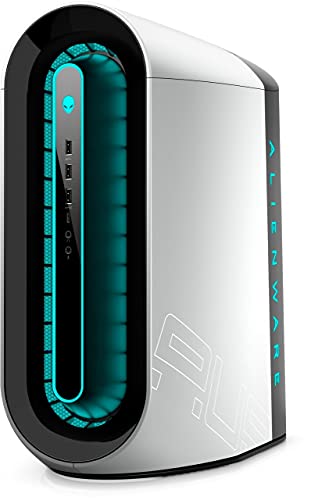 1440pLow stock
Dell
$989.99
- CPU
- i5-11400F
- GPU
- NVIDIA RTX 3080
- RAM
- 8GB
- SSD
- 256GB SSD
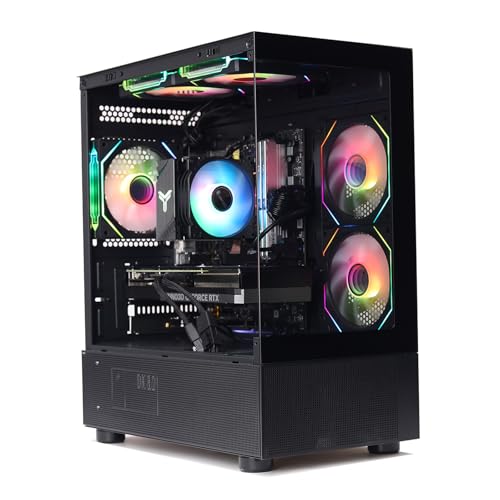 1440pLow stock
MXZ
$1,499
- CPU
- i7 13700F
- GPU
- NVIDIA RTX 4070
- RAM
- 16GB DDR4
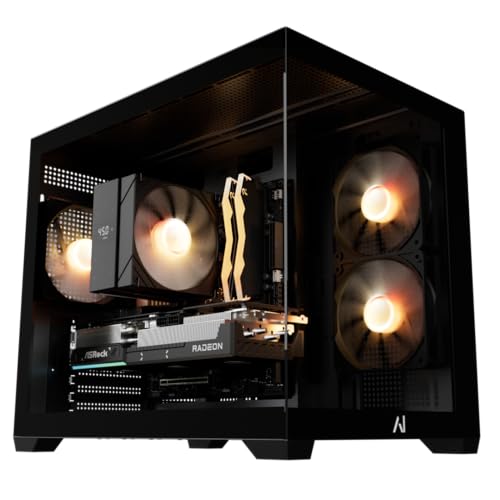 1440p
1440pAndromeda
$1,849.99
- CPU
- Ryzen 5 9600X
- GPU
- AMD RX 9070 XT
- RAM
- 16GB DDR5
- SSD
- 1TB SSD
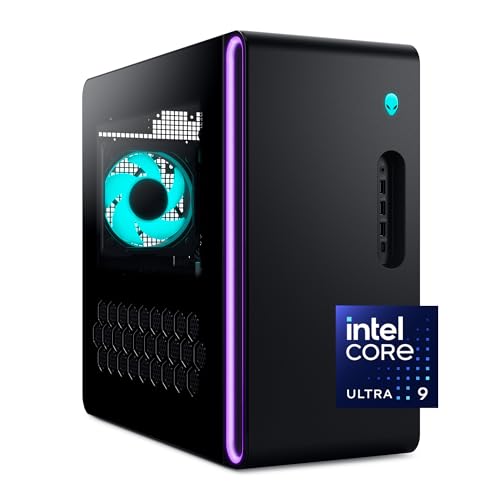 4KLow stock
Alienware
$2,975.99
- CPU
- Core Ultra 9 285
- GPU
- NVIDIA RTX 5080
- RAM
- 32GB DDR5
- SSD
- 1TB SSD
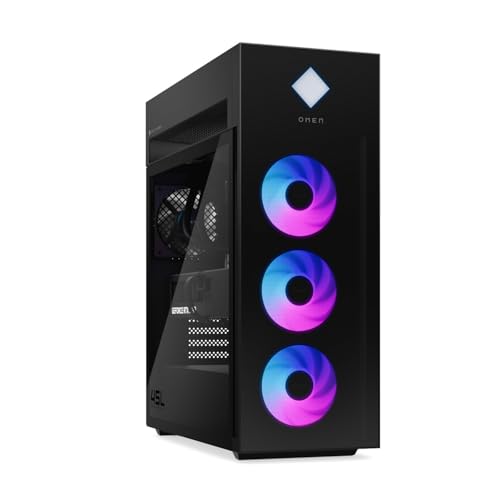 4K
4KPCONLINE
$5,299
- CPU
- Core Ultra 9 285K
- GPU
- NVIDIA RTX 5090
- RAM
- 32GB DDR5
- SSD
- 2TB SSD
Browse Every Pairing
Start from your graphics card or your processor to see its best-matched partners - each list ranks the top picks by balance with estimated FPS and live prices.
Show all 90 ranked lists
Best CPU for your GPU
- Best CPU for NVIDIA RTX 5090
- Best CPU for NVIDIA RTX 4090
- Best CPU for NVIDIA RTX 4090 D
- Best CPU for NVIDIA RTX 5080
- Best CPU for NVIDIA RTX 4080 Super
- Best CPU for NVIDIA RTX 4080
- Best CPU for AMD RX 7900 XTX
- Best CPU for NVIDIA RTX 5070 Ti
- Best CPU for NVIDIA RTX 3090 Ti
- Best CPU for NVIDIA RTX 4070 Ti Super
- Best CPU for AMD RX 9070 XT
- Best CPU for NVIDIA RTX 4070 Ti
- Best CPU for NVIDIA RTX 5070
- Best CPU for AMD RX 7900 XT
- Best CPU for NVIDIA RTX 3090
- Best CPU for NVIDIA RTX 3080 Ti
- Best CPU for NVIDIA RTX 4070 Super
- Best CPU for NVIDIA RTX 3080 12GB
- Best CPU for AMD RX 9070
- Best CPU for NVIDIA RTX 3080
- Best CPU for AMD RX 7900 GRE
- Best CPU for AMD RX 6950 XT
- Best CPU for NVIDIA RTX 4070
- Best CPU for NVIDIA RTX 5060 Ti
- Best CPU for AMD RX 7800 XT
- Best CPU for AMD RX 6900 XT
- Best CPU for NVIDIA RTX 3070 Ti
- Best CPU for AMD RX 6800 XT
- Best CPU for NVIDIA RTX 3070
- Best CPU for AMD RX 7700 XT
- Best CPU for NVIDIA RTX 4060 Ti
- Best CPU for NVIDIA RTX 5060
- Best CPU for AMD RX 6800
- Best CPU for NVIDIA RTX 3060 Ti
- Best CPU for AMD RX 9060 XT
- Best CPU for NVIDIA RTX 4060
- Best CPU for AMD RX 6750 XT
- Best CPU for NVIDIA RTX 2080 Ti
- Best CPU for AMD RX 7600 XT
- Best CPU for AMD RX 6700 XT
- Best CPU for AMD RX 9060
- Best CPU for NVIDIA Titan RTX
- Best CPU for NVIDIA RTX 2080 Super
- Best CPU for NVIDIA RTX 3060 12GB
- Best CPU for AMD RX 7600
Best GPU for your CPU
- Best GPU for AMD Ryzen 7 9800X3D
- Best GPU for Ryzen 7 9850X3D
- Best GPU for AMD Ryzen 9 9950X3D2
- Best GPU for AMD Ryzen 7 7800X3D
- Best GPU for AMD Ryzen 9 9950X3D
- Best GPU for AMD Ryzen 9 9900X3D
- Best GPU for AMD Ryzen 9 9950X
- Best GPU for Intel Core i9-14900K
- Best GPU for Intel Core i9-14900KF
- Best GPU for Intel Core i9-14900KS
- Best GPU for AMD Ryzen 9 7950X3D
- Best GPU for Intel Core i9-13900KS
- Best GPU for AMD Ryzen 9 9900X
- Best GPU for Intel Core i7-14700K
- Best GPU for Intel Core i7-14700KF
- Best GPU for Intel Core i9-13900K
- Best GPU for Intel Core i9-13900KF
- Best GPU for AMD Ryzen 9 7900X3D
- Best GPU for AMD Ryzen 9 7950X
- Best GPU for Intel Core Ultra 7 270K Plus
- Best GPU for Ryzen 5 7500X3D
- Best GPU for AMD Ryzen 7 9700X
- Best GPU for Intel Core Ultra 9 285K
- Best GPU for Intel Core i7-13700K
- Best GPU for Intel Core i9-14900
- Best GPU for Intel Core i9-14900F
- Best GPU for AMD Ryzen 9 7900X
- Best GPU for Intel Core i5-14600K
- Best GPU for Intel Core i5-14600KF
- Best GPU for Core i7-13790F
- Best GPU for Intel Core i7-14700
- Best GPU for Intel Core i7-14700F
- Best GPU for Intel Core i9-13900F
- Best GPU for Intel Core Ultra 5 250K Plus
- Best GPU for Intel Core Ultra 5 250KF Plus
- Best GPU for Intel Core i9-13900
- Best GPU for AMD Ryzen 7 7700X
- Best GPU for AMD Ryzen 9 7900
- Best GPU for Intel Core i7-13700KF
- Best GPU for AMD Ryzen 5 9600X
- Best GPU for Intel Core Ultra 7 265K
- Best GPU for Intel Core Ultra 7 265KF
- Best GPU for Intel Core Ultra 9 285
- Best GPU for Intel Core i5-13600K
- Best GPU for Intel Core i5-13600KF
Frequently Asked Questions
What is a PC bottleneck?
A PC bottleneck occurs when one component (usually the CPU or GPU) limits the performance of the other. For example, if your CPU is too slow to keep up with your GPU, the GPU will sit idle waiting for data, reducing your overall frame rate. A balanced system has both components working near their full potential.
How do I check if my PC has a bottleneck?
Use our free bottleneck calculator: select your CPU, GPU, and gaming resolution. The tool compares their performance scores weighted by resolution (1080p is more CPU-dependent, 4K is more GPU-dependent) and tells you which component is the limiting factor and by how much.
Does resolution affect bottlenecking?
Yes, significantly. At 1080p, the CPU handles about 60% of the workload, making CPU bottlenecks more common. At 4K, the GPU handles about 80% of the work, so GPU bottlenecks are more likely. The same CPU-GPU pair can be balanced at one resolution and bottlenecked at another.
What is an acceptable bottleneck percentage?
A bottleneck under 10% is generally considered balanced and not worth worrying about. Between 10-25% you may notice some performance loss but it is usually acceptable. Over 25% means one component is significantly holding the other back and an upgrade would make a noticeable difference.
Should I upgrade my CPU or GPU to fix a bottleneck?
Upgrade whichever component is the bottleneck. If the calculator shows a CPU bottleneck, upgrading your CPU will help most. If it shows a GPU bottleneck, a better GPU will give you the biggest improvement. Sometimes changing resolution (e.g. moving from 1080p to 1440p) can also rebalance the workload.
Are my CPU and GPU compatible?
Almost certainly yes. Any modern desktop CPU works with any modern desktop GPU - they connect through the same PCIe slot, and PCIe is backward and forward compatible, so a current graphics card will run in an older board and vice versa. CPU and GPU compatibility is not really the thing to worry about. What matters is whether the two are balanced: a fast GPU held back by a slow CPU still works, it just wastes the money you spent on the GPU. Use the checker above to see how well matched your pair actually is.
How do I check CPU and GPU compatibility before buying?
Select the CPU and GPU you are considering above, along with the resolution you play at. The result shows how balanced the pairing is and which component limits the other. The real compatibility questions to check separately are socket fit between your CPU and motherboard, whether your power supply has the wattage and connectors the GPU needs (our PSU calculator covers this), and whether the card physically fits your case (our case finder covers that).